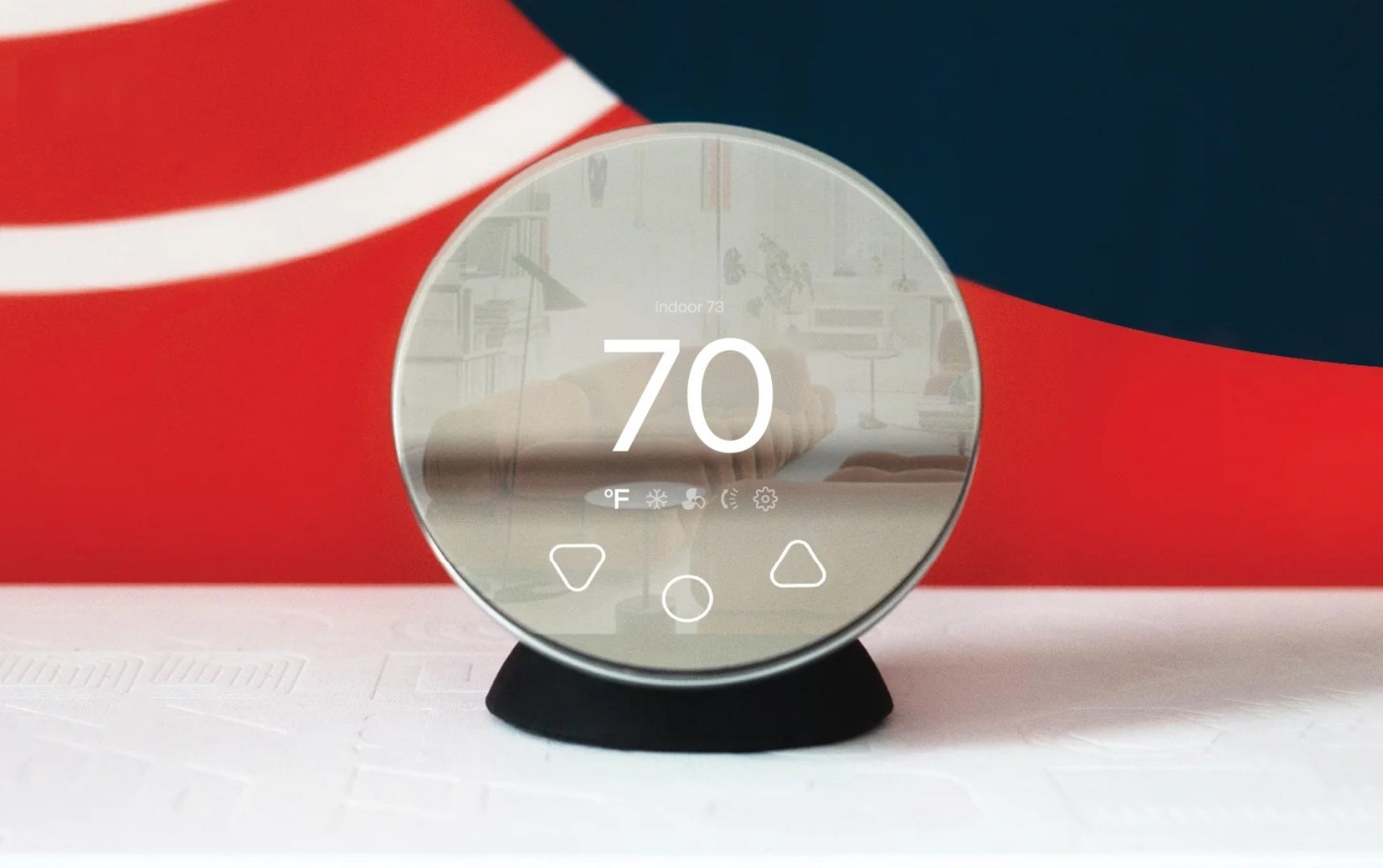
Klima comes with built-in physical controls, giving you quick and easy access to your A/C’s settings without needing to access the Boldr Energy app.
This is especially useful if your phone is out of reach or your guests do not have access to the Boldr Energy app. To find out how to invite your guests or family members to the Boldr Energy app, view this article.
With these controls, you can adjust the temperature, change modes, and fine-tune fan settings in seconds.
Powering On and Navigation
- Hold the circle button to turn Klima on or off.
- Tap the circle button to cycle through modes.
Adjusting Temperature and Modes
- Up Arrow (▲): Increases the temperature.
- Down Arrow (▼): Decreases the temperature and adjusts cycle settings through available modes.
Accessing settings
1. Navigate to the Settings page by tapping the center circle.
2. Use the arrow buttons to scroll through the available settings.
3. Press and hold the center circle to select and open a setting.
Available settings
On the Settings page, you can configure the following options.
1. Temperature unit
Set the thermostat to display temperature in Fahrenheit or Celsius.
2. Display brightness
Adjust how bright the screen appears based on your preference.
3. Button lights
Choose when the button lights are active:
- Lit from sunrise to sunset
- Lit only when interacting with the thermostat
- Always lit
4. Pair with Matter
Press and hold the center circle to display a Matter pairing QR code.
Scan the code using your phone’s camera and follow the on-screen steps to connect Klima to Apple Home.
5. Factory reset
Restore the thermostat to its original factory settings.